Most people use maybe a tenth of what Claude can actually do. Not because the rest is hard, but because nobody ever showed them where it lives. You open a chat, you type a question, you get an answer, and you close the tab. That is the smallest slice of the tool.
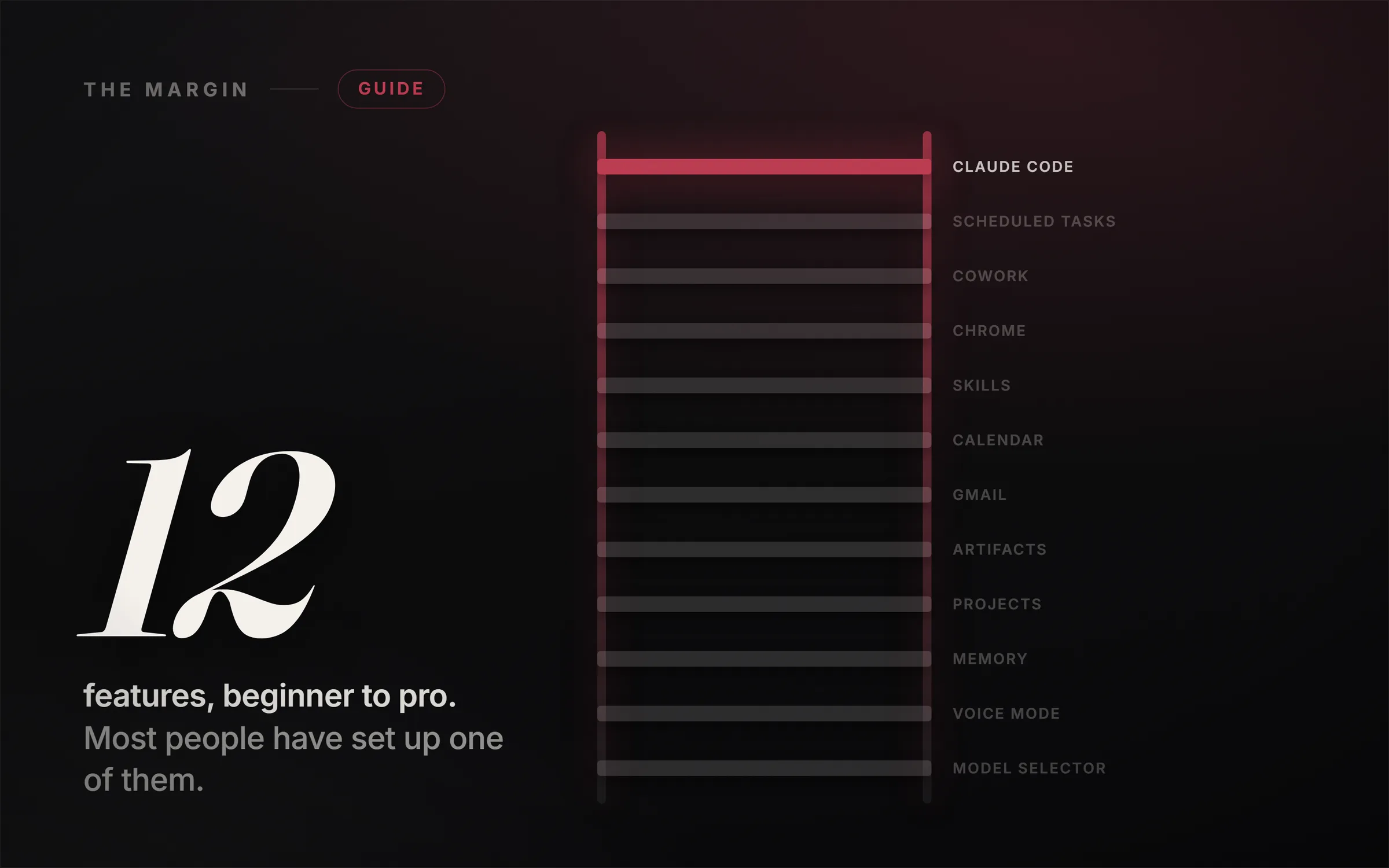
This is the other ninety percent. Twelve features, sorted into three honest levels, from complete beginner to genuine pro, each with the real steps to turn it on and the honest limits nobody mentions. Learn even four of these and Claude stops being a smarter search box and starts doing the actual work.
The video above walks all twelve out loud as a countdown to number one. The article below stands on its own, goes a notch deeper on the how-to, and carries the corrections the fast-talking version skips: the real four-model lineup, why the Gmail connector can never send an email, and why Claude will not reliably pick the right model for you. Read it, watch it, or both.
Why most people only use 10% of Claude
The gap is not intelligence, it is discovery. Claude ships new capabilities almost monthly, and they hide behind small buttons, toggles in Settings, and menu items you have no reason to click. The people whose Claude seems to "run circles" around everyone else's are rarely smarter. They just found the switches.
So think of the features as a ladder with three rungs. Level 1, Beginner, changes how you interact with Claude at all. Level 2, Power User, is where Claude stops answering and starts building and acting. Level 3, Pro, is Claude working on its own, in the background, while you do something else. We will climb it one feature at a time. If you already know the basics, jump to your level, but do not skip the beginner rung, because the highest-leverage habit of all lives there.
Level 1: the beginner features (the basics almost nobody sets up)
1. The model selector: Haiku, Sonnet, Opus, and Fable
Start here, because this is the first thing almost everyone gets wrong. Claude is not a single brain. As of 2026 it is a lineup of four, each built for a different job, and you choose which one shows up in the dropdown at the top of the chat.
- Haiku (Haiku 4.5) is the fastest and cheapest. Reach for it on simple, high-volume tasks where speed matters more than depth.
- Sonnet (Sonnet 5) is the everyday workhorse and the current default for most plans. Fast, balanced, and strong enough to carry the majority of your writing, coding, and analysis.
- Opus (Opus 4.8) is the heavy lifter for hard reasoning, the kind of problem that needs the model to genuinely sit and think.
- Fable (Fable 5) is the most capable model in the lineup, built for the longest and hardest jobs where only the best output will do.
How to use it: open the model dropdown at the top of any chat and pick before you start. The rule of thumb, and it holds up: quick and small, Haiku. Daily work, Sonnet. Hard or huge, step up to Opus or Fable. Here is the honest correction most guides skip. Claude does not reliably auto-select the right model for you, so treating the dropdown as a real decision, not a thing to ignore, is the single habit that makes everything you get back better.
2. Voice mode: stop typing and just talk
Voice mode lets you speak to Claude and hear it talk back, completely hands free. It changes when you use Claude, not just how. Your real questions tend to show up in the car, on a walk, or while you are doing the dishes, exactly when a keyboard is not an option.
How to use it: open the Claude mobile app, tap the microphone or voice icon in the chat bar, and speak the way you would to a person. Claude listens, thinks, and answers out loud. Most people never switch it on. Switch it on, and Claude comes everywhere you go.
3. Memory: Claude that remembers you
With memory on, Claude quietly keeps track of what matters across chats: your name, what you are working on, and how you like your answers written. Every new conversation starts warm instead of cold and clueless, so you stop explaining who you are ten times a day.
How to use it: turn memory on in Settings, then let it build over time. You can also feed it directly. Paste in the background it should hold onto, and use the memory import option to bring your history in from another assistant like ChatGPT, Gemini, or Copilot, so Claude starts already knowing your context instead of from scratch. You tell it once, and it remembers.
4. Projects: one home for everything on a topic
A Project is a dedicated workspace that carries its own files and standing instructions. Drop in your reference docs, notes, and files, set the instructions a single time, and from then on every chat inside that Project already knows the background before you type a word.
How to use it: in the sidebar, create a new Project, add your files and knowledge, and write the instructions once (your client, your codebase, your book, your business). Then start your chats inside it. Instead of re-explaining the situation over and over, you open the Project and go straight to the work. This is how organized people quietly run circles around everyone else. For the full mental model behind this, see the 6 levels of using Claude.
Level 2: the power-user features (Claude starts doing the work)
This is where Claude stops just answering questions and starts producing and acting on real things.
5. Artifacts: Claude builds you a real, working thing
Ask for an app, a chart, a document, or a web page, and Claude does not merely describe it. With Artifacts it builds the thing live in a panel beside the chat while you watch it appear, then edits it in place when you ask.
How to use it: just ask for something buildable ("make me a mortgage calculator," "build a one-page landing page," "turn this data into a dashboard"). The Artifact opens on the right. Then talk to it in plain English, "make the button bigger, change the colors, add a column," and it updates instantly. A working calculator, a landing page, a polished document, all from one message. This is the feature that makes people gasp the first time they see it.
6. The Gmail connector: hand off the inbox (draft only)
Connect Gmail and you can ask Claude to catch you up on a thread, find an old invoice, or write a reply in your voice. It reads the actual conversation and drafts the response.
How to use it: in Settings, open Connectors and connect your Google account, then ask in plain language ("draft a reply to my landlord about the deposit"). Here is the part that matters most, and the correction to get right: the Gmail connector saves replies as drafts. It cannot and does not send email on its own. You read the draft, tweak a line, and hit send yourself. An hour of inbox cleared in minutes, and you stay completely in control.
7. The Google Calendar connector: your schedule on autopilot
Connect your calendar and Claude reads your week like a real assistant. Ask when you are actually free, ask it to protect ninety minutes for deep work, or ask it to book a call, and it finds the real gap and drafts the event for you to confirm.
How to use it: connect Google Calendar in the same Connectors settings, then talk to it ("when am I free next week," "find me 90 minutes for focused work Thursday," "set up a call with Sam Thursday afternoon"). As with Gmail, it drafts and you approve, so you stop playing calendar tetris in your head and stop the endless back and forth.
8. Skills: teach Claude your job once
A Skill is a folder of instructions Claude loads exactly when it needs them: your brand voice, your report format, the precise steps you always follow to get something right. You build it one time, and from then on Claude simply knows.
How to use it: create a Skill with your standing instructions and any reference files, and Claude pulls it in automatically when a task calls for it. "Format this the way we always do it." Done, the same way every time, without re-explaining. This is the real secret of power users. They stop repeating themselves, forever.
Level 3: the pro features (Claude works without you in the room)
Most people never make it this far. This is Claude running on its own, in the background, while you go do something else entirely.
9. The Chrome extension: Claude living inside your browser
The Claude Chrome extension puts Claude on every page you open. It can see what you are looking at and act on it: summarize a long article, fill out a form, pull the key numbers off a dashboard, or compare what is in several tabs. No copy-pasting, no window switching.
How to use it: install the Claude extension for Chrome and pin it, then open it on any page and ask. Note that browser control is newer and has rolled out in stages, so exactly what it can click and do continues to expand. It works right where you already work, on whatever is in front of you.
10. Cowork: run a whole team of agents in parallel
Cowork is agent mode in the Claude desktop and web app. Hand it a goal and it can spin up sub-agents that each take a piece of the job and run at the same time. One researches, one drafts, one checks the numbers, all in parallel, while you keep working on something else. This is the moment Claude stops being a tool and becomes a team that reports back to you.
How to use it: open Cowork, point it at a folder or a goal, and let it plan and execute the multi-step work. It reached general availability on desktop earlier in 2026 and has since expanded to the web and mobile in beta, with those sessions running remotely rather than on your own machine, so availability depends on your platform and plan.
11. Scheduled tasks: Claude that shows up without you
Tell Claude to do something on a recurring schedule and it just runs, on its own, forever. A morning news brief in your industry, a weekly report, your Monday plan already written and waiting before you sit down.
How to use it: set up a scheduled task with the instruction and the cadence ("every morning at 7, scan the news in my field and send me only the three things that actually matter"). Set it once, and it runs on its own. This is the whole difference between a tool you have to remember to open and an assistant that quietly works while you sleep.
12. Claude Code: Claude with its hands on your computer
Number one. Claude Code puts Claude directly on your machine. It reads your files, writes real working code, runs that code, sees what breaks, and fixes its own mistakes in a loop until the thing actually works. You describe the app you want in plain English and watch it get built, file by file.
How to use it: install Claude Code (it runs in your terminal and integrates with editors), point it at a folder, and describe what you want. You no longer need to be a developer to ship software. You need an idea and this. That is the entire shift in one feature, and it is exactly why it sits at the top of the ladder. If you want to see where this leads, we broke down how people make money vibe coding.
Bonus: Claude Design, the one almost nobody has tried
Describe the look you want and Claude designs it for you: a poster, a slide deck, a logo and a brand, or a full web page, styled and laid out and genuinely ready to use rather than a rough sketch. Plain words in, finished design out. It is a quiet superpower most people have not touched yet. Claude Design sits behind a paid plan, but there is a capable free, open-source route if you want to try the workflow first, which we cover in Claude Design free: the open-source alternative.
How to actually get faster with Claude
The point of all twelve is not to collect features. It is to change one habit. Pick your model on purpose. Turn memory on. Move a recurring task into a Project. Let a connector draft your email. Each of these, on its own, gives you back real time, and time compounds.
So here is the assignment: pick the single feature above you did not know before, and go use it today. Not next week, today, on a real task you already have. That is how ten percent turns into ninety.
We build and document AI-powered workflows and businesses at IdeasRepay, so this guide is written from inside the work, not from a thumbnail. If you want the full step-by-step for turning features like these into something that pays, the complete library of blueprints is waiting at ideasrepay.com. And if money is the goal, start with 7 Claude AI side hustles that actually pay.